I am linking up with my buddies Katie, over at Queen of the First Grade Jungle, Fern, over at Fern Smith's Classroom Ideas, and Erica, over at Erica's Ed-Ventures. My post is for all of you creative teachers who make products and you want to make a quick and easy, but attractive preview in Powerpoint. Quite by accident, I discovered the "change picture" option, and, ever since, making previews and products got a little bit easier. Here is a picture tutorial on how to make a new preview using an existing preview.
(Right click on each photo to enlarge them.)
First, open up a preview that you already made.
Then, click on one of the images in the preview and click on "format."
Next, click on "change picture."
Find the picture you want to use in your new preview and double click to insert.
Voila! There is your new image, placed in the exact same spot as where the old image used to be. And, as an added plus, the new image is formatted exactly the same as the old image. Correct size and drop shadow, included! Isn't that amazing.
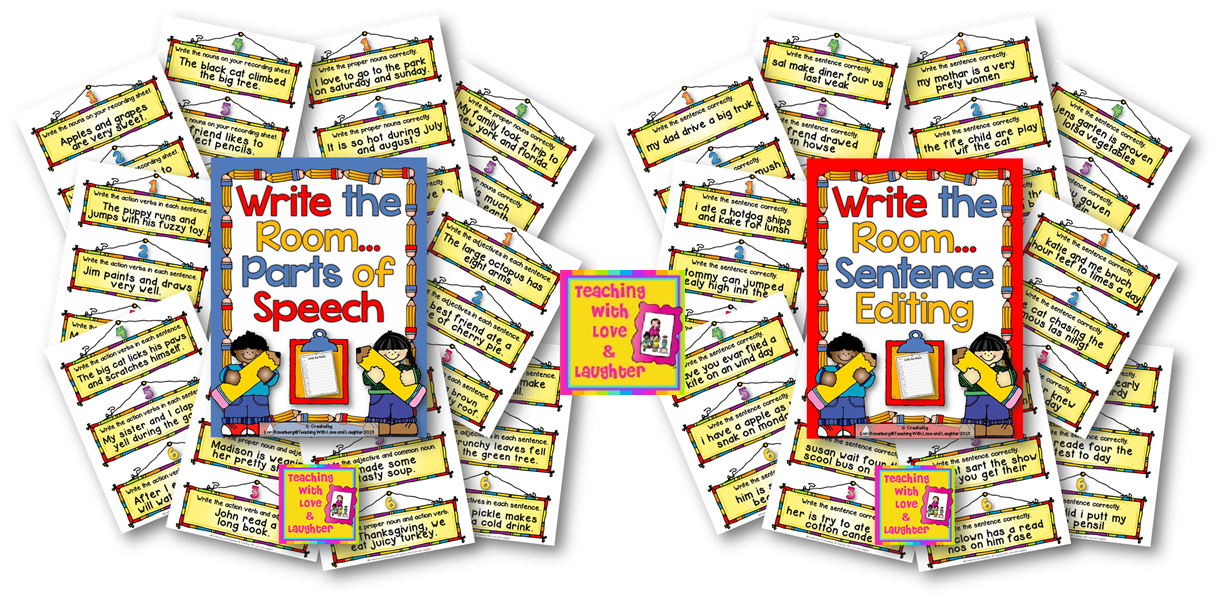
Here is a side by side shot of two different previews that I made using the change picture option.
You can use the change picture feature any time you want to change from one picture to another and you want to keep the same formatting. I also use this function when I have a colored image and I want to change it to black and white. I do this when I create a product that has colored and black and white activities. I also use this function to change borders and frames. I love how the formatting stays the same.
I hope I have given you some helpful tips today. I learn best by trial and error. Usually, more error than trial! I accidentally clicked on this helpful feature one day and I've used it happily ever since. Please let me know if you already use this option when creating or if you will use it now. And, if you have other uses for it, please let us all know! Thanks, and, happy creating!




.JPG)


